
Presentation Mode
Creating custom slides
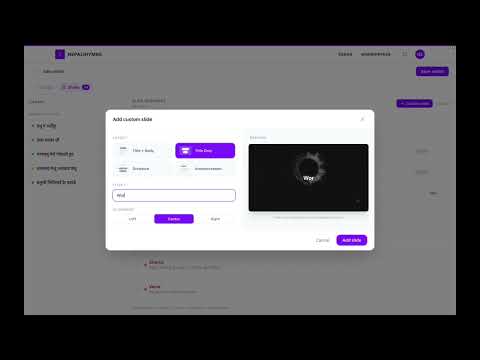
Design the exact order, content, and background of every slide.
NepaliHymns
The Slides tab in the Setlist Builder lets you go beyond playing songs in order. You can choose exactly which sections to show, arrange them freely, add your own text slides, and set a background image for the entire presentation.
Opening the custom slides editor
- 1Open a setlist and click Edit setlist.
- 2Click the Slides tab at the top of the builder.
- 3The slide sequence editor opens.
Setting a background image
- 1When you add your first custom slide, a background picker appears.
- 2Choose from the system gallery curated by admins, or pick one of your personal backgrounds.
- 3To upload your own background, go to Settings → Slide Backgrounds (up to 1 image, 2 MB max, landscape only).
- 4Select None in the picker to present with no background image.
- 5The chosen background appears behind all custom slides during projection.
Building your slide sequence
- 1Select a song section from the left panel to add it to the sequence.
- 2Click Add Custom Slide to insert a blank text slide — useful for scripture, announcements, or transitions.
- 3Drag the handle on each slide block to reorder.
- 4Click the edit icon on a custom slide to type your content.
- 5Click X to remove a slide from the sequence.
Projecting your custom slides
- 1Click Save setlist in the top bar.
- 2Open the setlist and click Present — the presentation follows your custom slide order exactly.
Related articles
Still need help?
We're happy to help — email us anytime.